Set up an email address with your own .at domain
An address such as office@yourname.at needs a domain and an email service. Learn what the mailbox, MX, SPF, DKIM and DMARC each do.
Read guide ↗Which DNS records does your .at domain need for email sending? Understand SPF, DKIM and DMARC, enter the right values and test every sending service.
SPF, DKIM and DMARC support different checks on outgoing email. Use your mail service’s current values in the active DNS zone and test every sending route. A DNS record alone creates no mailbox and guarantees no delivery.
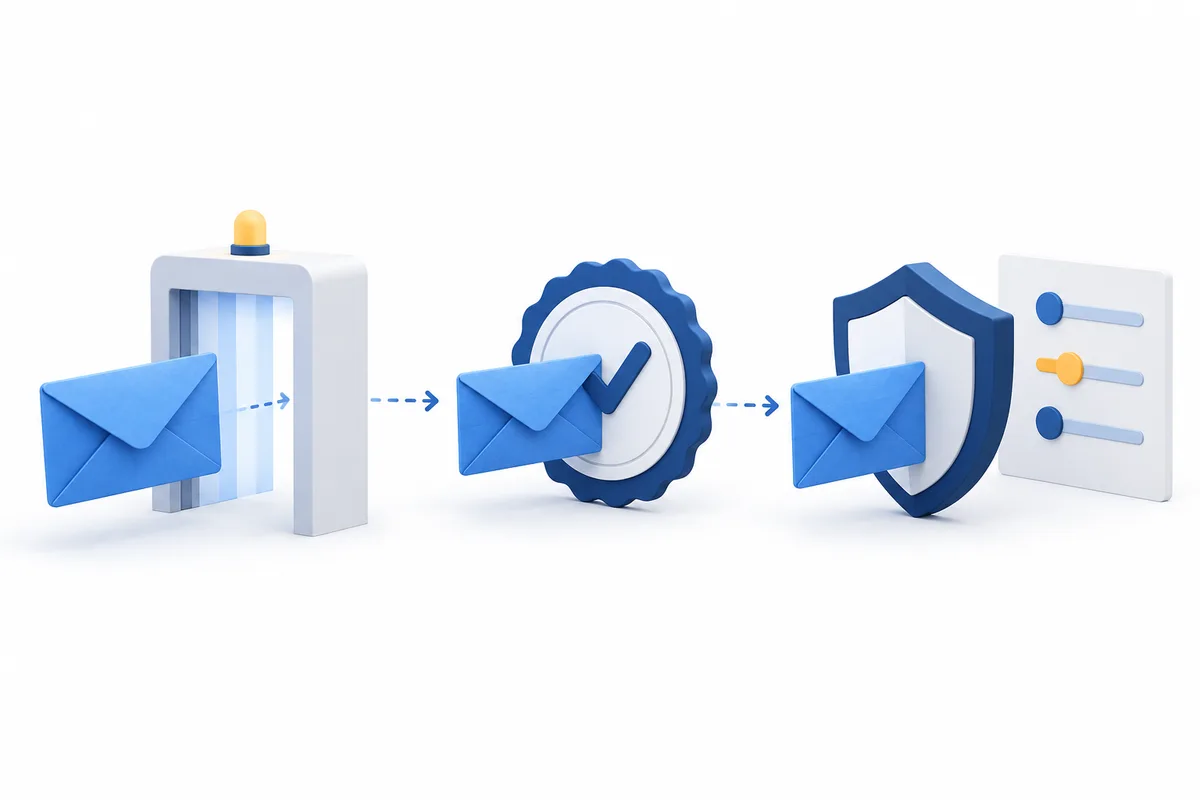
Start with a short sending inventory: personal mailboxes, contact forms, invoices, appointment confirmations and any newsletter service. For each service, record who can access its setup and where its current DNS instructions are kept. A working mailbox does not establish that the website contact form is configured correctly. Plan a separate test for every sending route. For a small Austrian business, a clear list with named responsibilities is more useful than a copied sample record covering only part of its actual setup. Keep existing working settings until you understand their purpose.
Separate the domain, mailbox and email serviceA DNS form has several distinct fields. Type identifies the record kind; host or name determines its location; value holds the information supplied by the mail service. The hostnames in the table are orientation aids, not settings to copy blindly. Use the exact name provided for your setup. Some instructions show a full hostname, while others show only the part preceding your domain. Check whether the form already adds the domain. Do not immediately replace a similar-looking record: different services may use different names.
| Purpose | Usual DNS type | Host supplied by mail service |
|---|---|---|
| SPF | TXT | Sending domain; often @ |
| DKIM | TXT or CNAME | Supplied selector under _domainkey |
| DMARC | TXT | _dmarc for the relevant domain |
SPF is published as a TXT record and concerns the technical sender domain used during delivery. A check must not select multiple SPF records at the same name. When adding another sending service, do not simply create a second v=spf1 record at that host. Have the required sending sources included in the intended combined record. Other TXT records, such as service-verification entries, are separate. Do not copy another organisation’s include values or change an existing ending rule without review by whoever maintains your email setup.
DKIM adds a signature to messages; DNS supplies the public key used to check it. The selector and signing domain identify where that key is found. Copy the complete supplied name, including the _domainkey portion. Your mail service may request a direct TXT record or a CNAME reference: use the specified method. A CNAME name must not also carry ordinary TXT records. A private signing key belongs neither in a public DNS field nor in a support ticket. Key management remains with the responsible mail service.
DMARC connects the visible author domain with aligned SPF or DKIM authentication results and publishes the requested handling of messages that fail. A TXT record under _dmarc therefore does not repair incorrectly configured sending. A p=none policy alone does not request rejection; reporting also needs an appropriate reporting setup. Do not switch blindly to a stricter policy. First review every legitimate sending route with your email administrator. Passing authentication does not guarantee placement in the recipient’s inbox.
At atdomain.at, manage DNS in your customer account when the domain uses our default nameservers. With custom nameservers, make the change in the zone served there. Save an inventory of existing records before editing. Enter each confirmed value using the correct type and host, then read the saved settings back. Keep the website connection intact while doing this. Work through one service at a time instead of replacing several unfamiliar entries together. Record the date, purpose and responsible person so the next change can be understood.

Consider a small studio using a .at domain as a planning example. Its team sends personal messages through a mailbox, while the website sends enquiries through a contact form. Create two separate rows in the test list. For each, record the responsible service, intended sender address and test result. If anything is unclear, ask which sending route actually produced the message. A new record for the form service should not unintentionally replace the mailbox setup. This example is a way of organising the work, not a ready-made configuration for every business.
Send from every listed route to an independent test mailbox. A message view such as “Show original” may include Authentication-Results reporting SPF, DKIM and DMARC outcomes. Use the receiving service’s own authentication assessment; an arbitrary header with the same name is not independent evidence. Note the service, time and precise error, and have inconsistent results investigated. Test reception and replies separately as functional checks. Remove private message contents before sharing diagnostic information with support. Do not treat a single successful message as approval of every sending system.
Check website and email separatelyUnderstand DNS caching and TTL
A standard new .at domain currently costs €12.99 total price for the first year at atdomain.at. Renewal is €15.99 total price per additional year. These domain prices do not include an email mailbox or website hosting. Budget separately for the mail service you choose and keep access to its setup and troubleshooting tools. If you have not chosen a name, first search for a suitable available domain. Then follow the DNS instructions for that exact domain and your own service account.
Find a suitable .at domainRegistration and renewal total pricesAn address such as office@yourname.at needs a domain and an email service. Learn what the mailbox, MX, SPF, DKIM and DMARC each do.
Read guide ↗DNS connects your domain to websites, email and other services. Each record has its own job.
Read guide ↗
Your .at website opens, but email is missing? Separate mailbox access, incoming mail, outgoing mail and the active DNS zone, especially after a website change.
Read guide ↗