Website works, email does not? Check your .at domain
Your .at website opens, but email is missing? Separate mailbox access, incoming mail, outgoing mail and the active DNS zone, especially after a website change.
Read guide ↗A message from your .at address has returned as undeliverable? Check its recipient, status and diagnostic before changing DNS or sending the email again.
First save the delivery report and compare it with the message you sent. Check the exact recipient, whether delivery is delayed or has finally failed, and the explanation supplied by the mail service. A bounce alone does not prove a domain-registration fault. Investigate with the responsible mail service and change DNS only when you have a specific, verified instruction.

You send a quotation from your Austrian business and shortly afterwards receive an “Undeliverable” message. Start by opening the sent email in your usual mail application. Compare its time and recipient with the report. If you addressed several people, only one recipient may be affected, so record exactly which destination has a reported problem. If there is no matching sent message, treat the report as unexplained and avoid its sign-in links. This first check requires neither a new domain nor a website change. Keep the original report in your account so your mail service can trace the transaction later.
A delivery report may contain fields such as Final-Recipient, Action, Status and Diagnostic-Code. RFC 3464 defines recipient, outcome and diagnostic information in these reports. Read them together rather than relying on the subject line. A delay notification is different from a final failure. In traditional SMTP replies, an initial 4 indicates a temporary negative outcome and an initial 5 a permanent one. The full explanation still matters. Record the entire code and diagnostic without replacing the wording with your own guessed cause.
| Report detail | What to establish next |
|---|---|
| Action: delayed | Whether the mail service plans further delivery attempts |
| Action: failed | Which cause must be addressed before another send |
| Several recipient sections | Which individual destinations are affected |
Compare the address character by character with confirmed contact information. Check both the part before @ and the domain after it. An old address-book suggestion might supply a contact address that has since changed. RFC 3463 defines the enhanced code 5.1.1 as a nonexistent destination mailbox; X.2.2 denotes a full mailbox. These clues call for different next steps. If necessary, ask the recipient through another already known contact route to clarify the address or mailbox issue. Do not invent a similarly spelled replacement. A different spelling could belong to someone else, especially when you are sending commercial or confidential material.
Distinguish a mailbox, an alias and an additional email address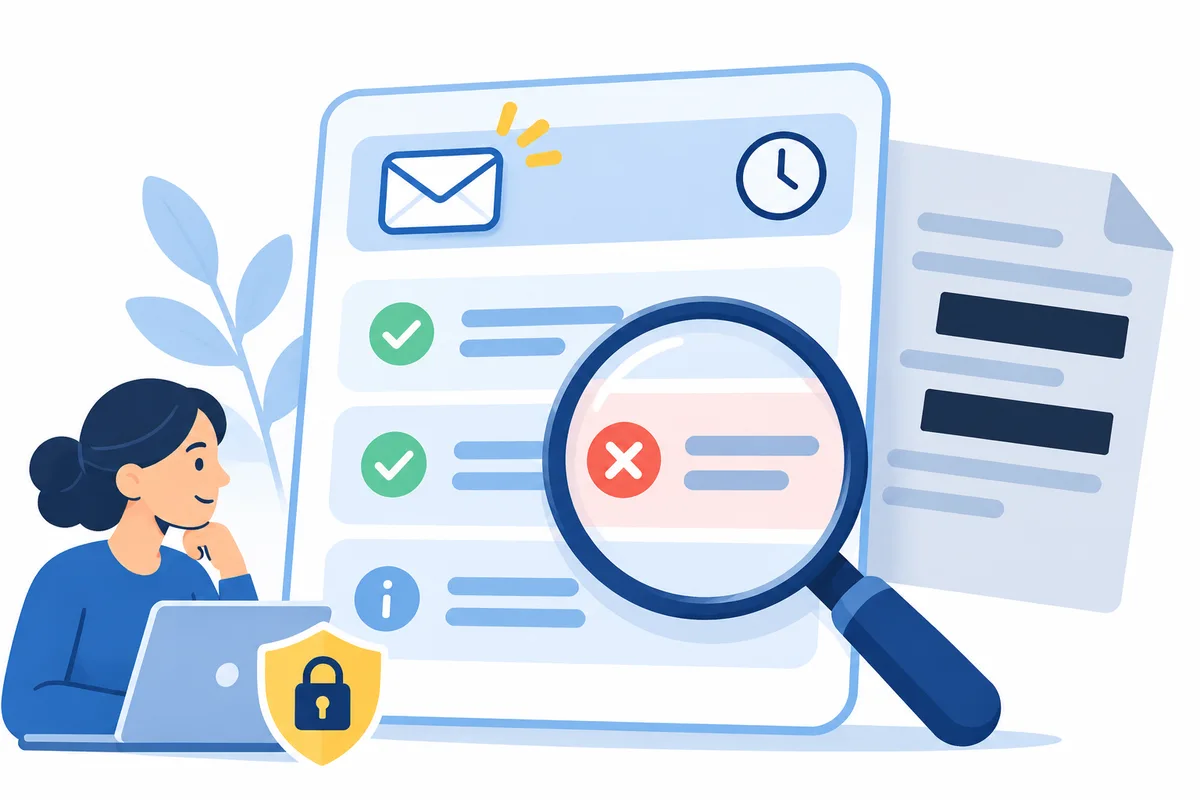
Check whether the problem affects only this address, several addresses at the same recipient domain, or unrelated destinations. Use existing reports and your mail service’s sending overview. One bounce does not justify mass test messages. Also note whether the email included an attachment and whether a mail migration recently took place. Those observations help you ask a focused support question; they do not yet establish a diagnosis. If another route is available for the quotation, agree with the recipient how they want to receive it before moving sensitive documents to another channel. Keep that communication separate from your technical investigation.
A rejection about sending policies or sender verification should first be investigated with the sending mail service. Ask which particular setting is involved and which current values it requires. An inbound MX record is not a universal repair for an outgoing email. Avoid overwriting existing mail records or switching nameservers on a guess. If a DNS correction is needed, preserve the previous settings and edit only the active zone. With external nameservers, the effective records belong at that DNS service. We can help on request within the controls we actually have; mailbox and server settings at another provider remain with the responsible mail service.
Understand instructions for SPF, DKIM and DMARCCheck where the active DNS records are managedFor an initial support request, supply your affected domain, the sending time and time zone, the status code and a cleaned diagnostic. Describe the scope you established in step four and identify the mail service you use. Remove confidential message bodies, attachments, credentials and unnecessary recipient details. If the responsible team later needs the original message or complete headers, agree a suitable secure way to provide them. In your own notes, record the proposed change, who can perform it and which specific check should follow. This also keeps clear whether DNS is involved at all, rather than assuming every email problem is a domain fault.

For a delay, establish whether your mail service is still attempting delivery instead of repeatedly resending the same message yourself. For a final rejection, send again only after the cause has been addressed. Acceptance by the sending service does not establish arrival in the inbox or a particular spam classification. For an important quotation, you can agree a receipt acknowledgement with the recipient. Keep the code, action and result together. If your website works but email generally does not, investigate incoming mail, outgoing mail and the mail-service configuration separately rather than replacing the domain connection.
Website working but email failing: separate the checksA standard new .at domain at atdomain.at currently costs €12.99 total for the first year, with renewal at €15.99 total per additional year. DNS management with our default nameservers and custom nameservers are supported. We do not sell hosting or email mailboxes; arrange those services separately. Buying a domain therefore does not automatically resolve a mailbox problem. If you need an additional address for a new project, first check the name and intended use. For a delivery failure on your existing domain, the specific report remains the starting point for finding the responsible service and the appropriate repair.
See .at domains and current total pricesSearch for a domain name for a new project
Your .at website opens, but email is missing? Separate mailbox access, incoming mail, outgoing mail and the active DNS zone, especially after a website change.
Read guide ↗
Contact, invoices and personal addresses under one domain: plan mailboxes, alias destinations and tests before publishing your new email addresses.
Read guide ↗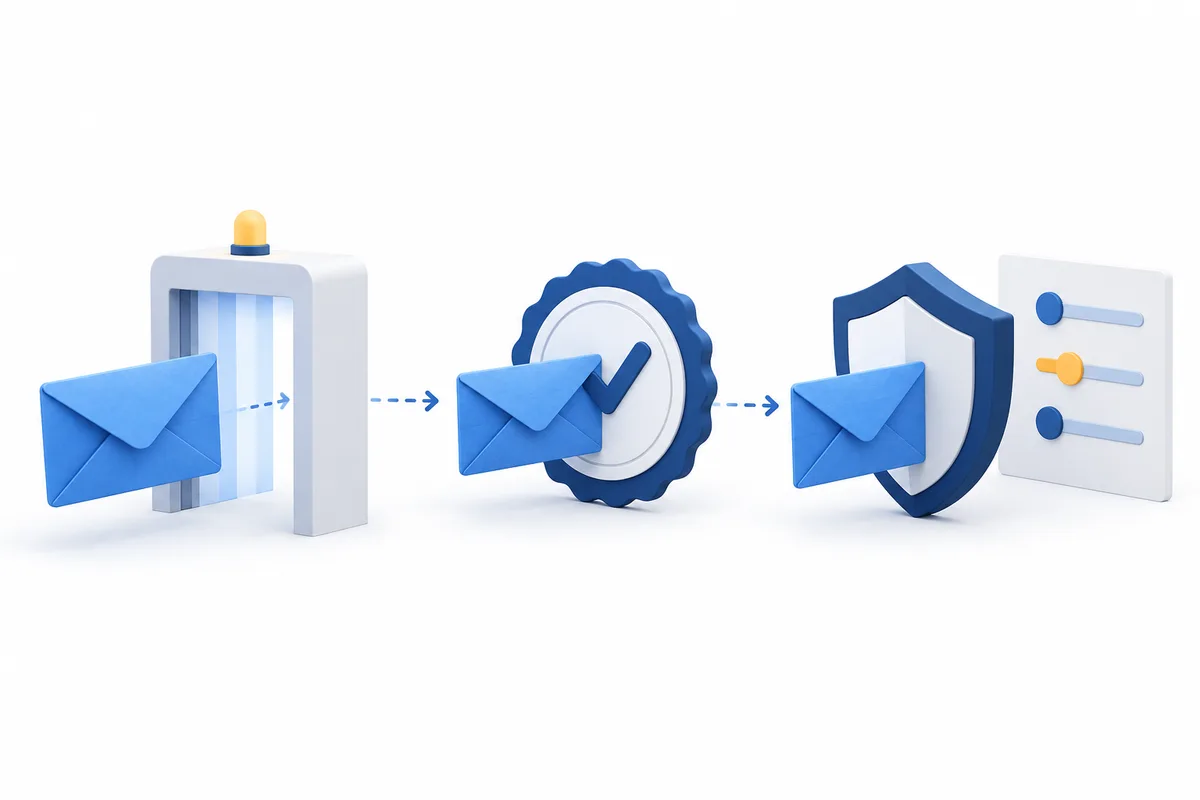
Which DNS records does your .at domain need for email sending? Understand SPF, DKIM and DMARC, enter the right values and test every sending service.
Read guide ↗